How to put a zoomable image at the top of a page
Upload the image to ZoomHub, copy its embed code, and in the address inside it set width=100%, height=auto, maxHeight=100svh, fit=cover and position=top. The image then spans the page at its own proportions and stops at the height of the screen, keeping its top in view. Visitors scroll past it as usual, and zoom with ⌘ or Ctrl and the scroll wheel, or by pinching.
Try it: a painting at the top of its page
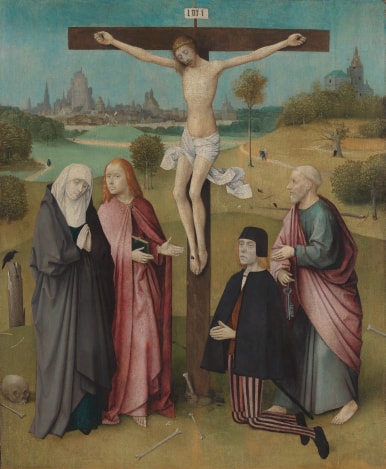
<script src="https://zoomhub.net/a/4FvVhPUruwR.js?width=100%&height=auto&maxHeight=100svh&fit=cover&position=top&border=none"></script>
Step by step
Upload your image
On the ZoomHub homepage, choose the file or paste a link to it. JPEG, PNG, TIFF, WebP, GIF or PDF all work.
Confirm your email
Enter your email address and open the link I send you. If you’re signed in, there’s nothing to confirm.
Copy the embed code
When your image is ready, choose Embed on its page and copy the code: one line of HTML.
Size it for the top of the page
In the address inside the code, set
width=100%,height=auto,maxHeight=100svh,fit=coverandposition=top, then paste the code first thing on the page, where the large picture was. Nothing else is needed: no wrapper, no CSS.
The facts
- The whole image
- With
height=autoandmaxHeight=100svh, the image spans the page at its own proportions. A wide image shows whole; a tall one stops at the height of the screen and fills the width.position=topkeeps its top in view and crops the bottom; leave it out to crop the top and bottom evenly. - Fill the screen
- With
height=100svhandfit=cover, the image fills the screen whatever its shape, like a cover photo. Addposition=top, or another side, to keep that side in view when the image is cropped. - Sizes
width,heightandmaxHeighttake pixels (px), percentages (%) and screen units (vw,vh,svh,dvh).svhis the screen’s height with the browser’s bars showing, so the image doesn’t jump on a phone as they hide. More options are in the embed documentation.- Scrolling
- The page scrolls over the image as over any other picture. Visitors zoom with ⌘ or Ctrl and the scroll wheel, or a pinch on a trackpad, and on phones they move the image with two fingers. In full screen, every gesture zooms and pans.
- File size
- Up to 1 GB per file on Free, and 5 GB on paid plans.
- Cost
- Free for personal use, up to 10 images. Commercial use needs a paid plan.
Questions
Why not keep the large picture at the top?
Every visitor downloads the whole file, even on a phone, and still can’t look closer. The viewer only loads the detail the screen shows, so the page opens faster, and visitors can zoom into the image right where they first see it.
Won’t visitors get stuck scrolling over the image?
No. Scrolling over the image moves the page, and a short hint shows how to zoom the first time someone tries. The image only takes every gesture in full screen.
Which part of a cropped image stays in view?
The center, unless you add position to the address: top, bottom, left or right, or two of them such as top left. Zooming out shows the whole image.
Do I need to change my site’s CSS?
No. The size lives in the embed code’s address, so the image keeps working when ZoomHub’s viewer changes. If your page puts a frame or margin around its first picture, the embed sits inside it like any other element.
Can I use it on a commercial site?
Yes, on a paid plan, which also removes the “Powered by ZoomHub” badge. Free is for personal use.